
Startup items after uninstall
Uninstallers often remove the main application binaries but leave startup entries, scheduled tasks, or tray helpers that were registered separately. Those leftovers can waste RAM at boot, show error dialogs pointing to missing paths, or even reinstall unwanted components if an updater task still runs.
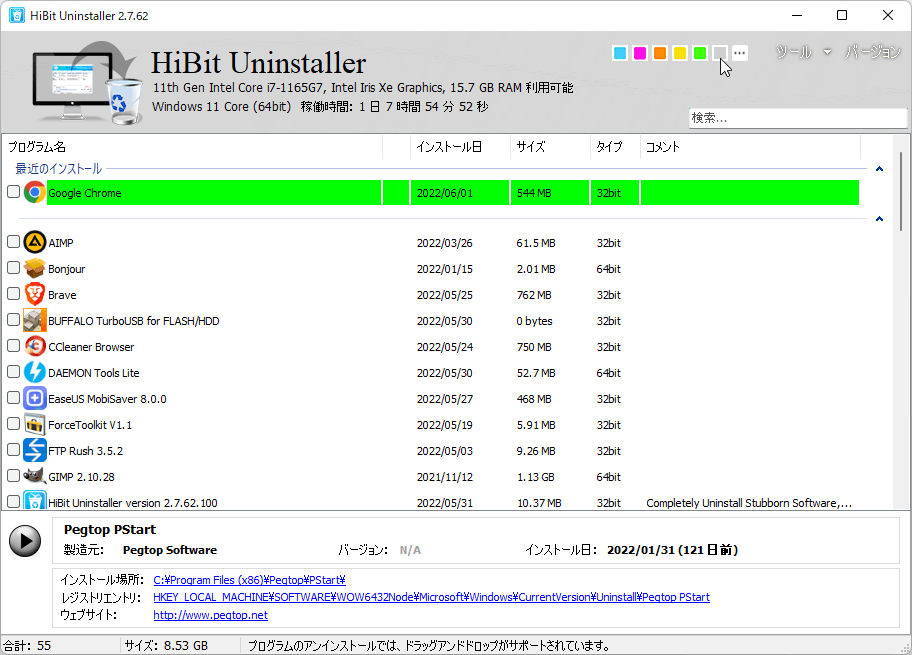
Where survivors hide
- Task Manager → Startup apps (Windows 10/11): user-level Run entries.
- Task Scheduler: vendor updates, telemetry, or crash reporters launched on a timer.
- Shell extensions: context menu handlers that load Explorer DLLs—may not appear as classic “startup” items.
- Services: still running or set to manual/auto even after the desktop UI is gone.
A practical post-uninstall pass
- Reboot once so locked files and pending deletes finish.
- Open Task Manager and disable or remove entries that reference the uninstalled product path.
- Open Task Scheduler library folders tied to the vendor name and disable tasks you recognize as obsolete.
- Check the system tray after login; if a ghost icon errors, note the executable path and remove it via startup tools or HiBit’s utilities if listed.
Services vs startup applets
A service can run with no tray icon at all. After removing VPN, printer, or audio software, open services.msc and sort by name or description to see if a vendor service is still set to Automatic even though the UI is gone. Stop it first, confirm stability, then disable or remove it following documentation—some drivers must be uninstalled in a specific order.
Browser extensions and helpers
Ad-supported apps sometimes install companion extensions or “software reporters” that survive the main uninstall. After removing the desktop program, review each browser’s extension page and reset policies if your organization manages them. Those components rarely show up in classic startup lists, so combine this check with the Task Scheduler pass above.
How HiBit fits
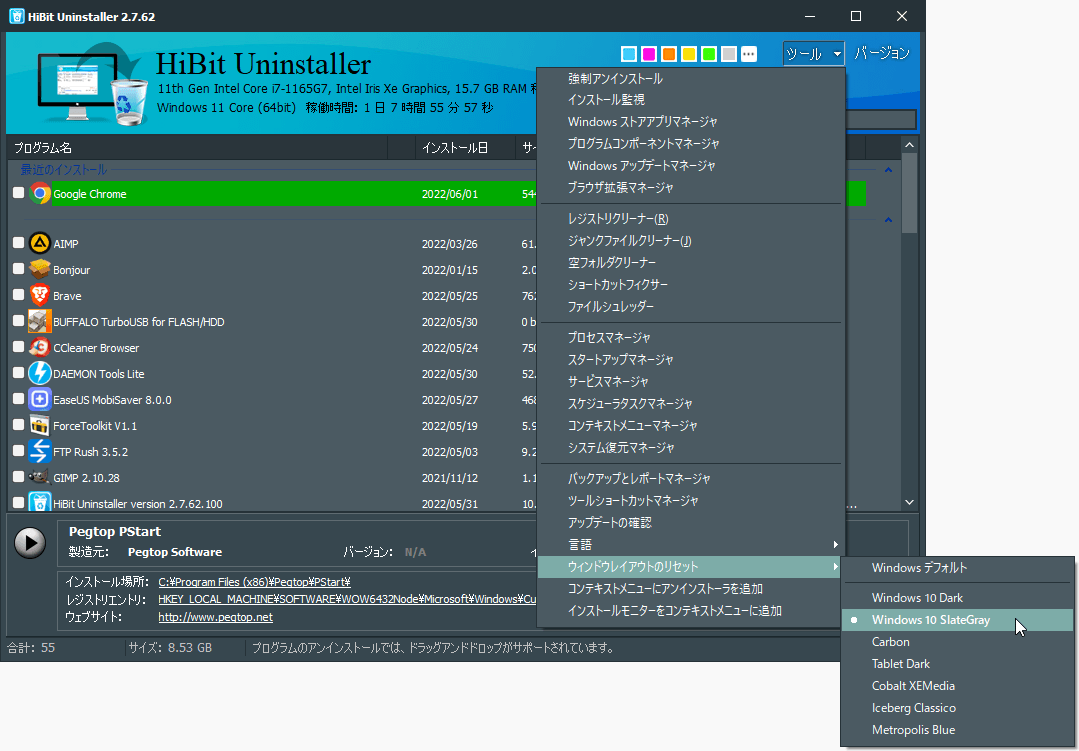
HiBit bundles maintenance tools (see features) that help inspect startup and processes in one workspace alongside uninstall. It does not replace your judgment: only disable items you can tie to the removed software. For security suites, services may need an orderly shutdown sequence—follow vendor removal docs first.
When the app “comes back” after removal
If a scheduled task or companion installer re-downloads components, killing the folder is not enough. Remove the task, then uninstall again, or use force uninstall on the helper package if it is listed. The knowledge hub on the homepage discusses relaunch tasks in the extended FAQ.
Related reading
Browse the topics hub for deep-dive and handbook sections, or jump straight to deep-dive maintenance for checklist-style plans.