HiBit Uninstaller: remove programs completely, with no leftovers

HiBit Uninstaller is a free Windows uninstaller for Vista through 11. Force uninstall stubborn apps, batch removal, leftover scan, and registry cleanup in one lightweight utility.

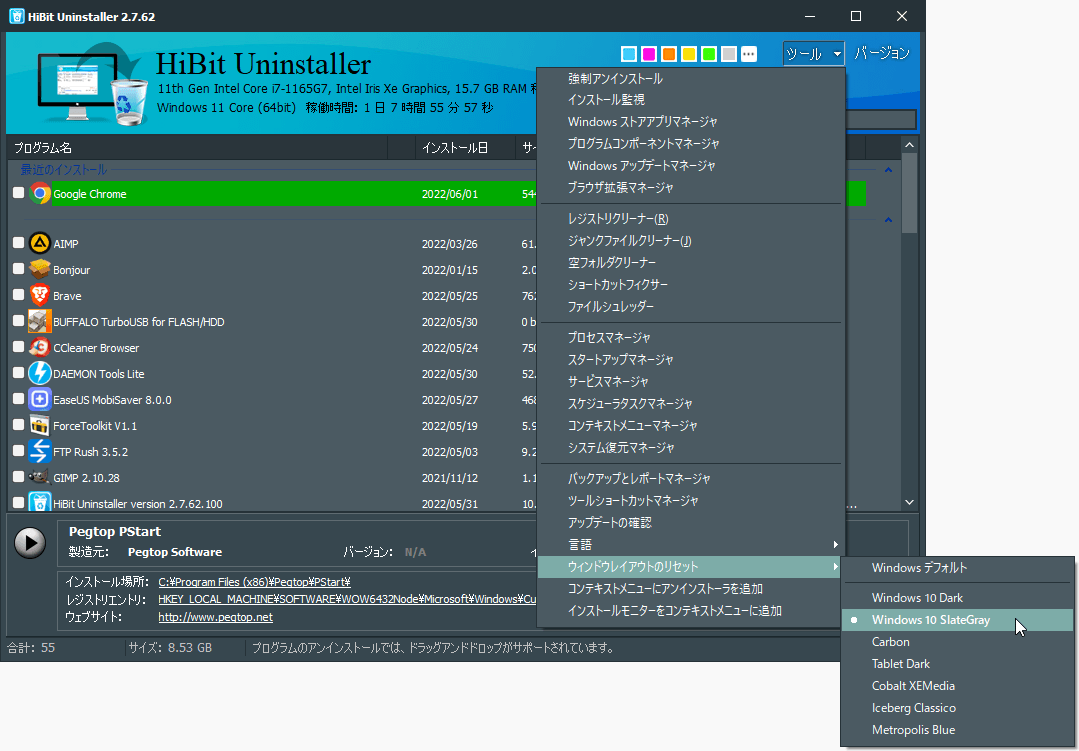
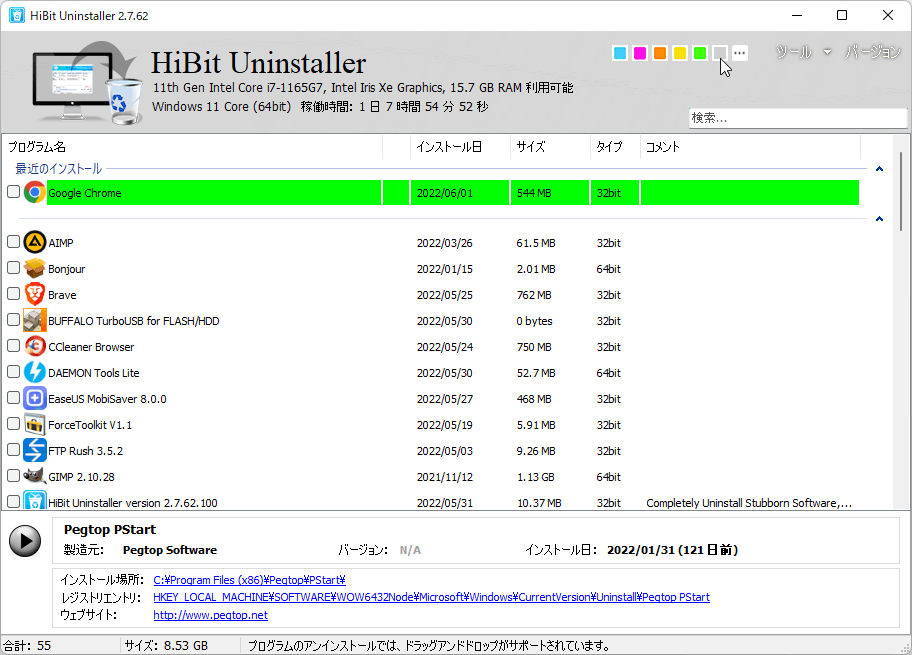
HiBit Uninstaller main window listing installed programs

Built for a cleaner Windows

HiBit Uninstaller bundles uninstall, leftover scan, and maintenance tools in one fast, lightweight package for Windows.

Forced uninstall

Remove stubborn programs that resist standard uninstallation and clean related files and registry entries.

Batch uninstall

Queue multiple programs and process them with full leftover cleanup for each removal.

10+ bonus tools

Registry cleaner, junk cleanup, file shredder, startup manager, process manager, and more.

Microsoft Store apps

Remove Store applications and manage related components from one place.

Installation monitor

Track new installs so uninstalls stay precise and easier to verify later.

Portable edition

Small footprint: run from USB with no install required. Free, without artificial limits.

Trusted by picky uninstaller users

Quotes from reviews and community feedback, focused on thorough removal and a small footprint.

“Better than Revo! I've tried many uninstallers and HiBit is the best. Completely removes everything including registry leftovers.”

Snapfiles user review

“I do not believe there is a better or more effective free uninstaller available. The bonus tools are a real bonus. Highly recommended.”

Jim Hillier, Dave's Computer Tips

“Long-time Revo user here. HiBit has quickly become my uninstaller of choice. Small footprint, huge capabilities.”

Software Informer

How to use HiBit Uninstaller

Three practical flows most people need: standard removal, force mode, and batch cleanup.

Step 1

Standard uninstall

Right-click any program in the list and choose Uninstall. HiBit runs the vendor uninstaller, then offers a leftover scan. Use Advanced Scan when you want to review every item before deletion.

HiBit Uninstaller program list and uninstall actions
Step 2

Force uninstall and leftover review

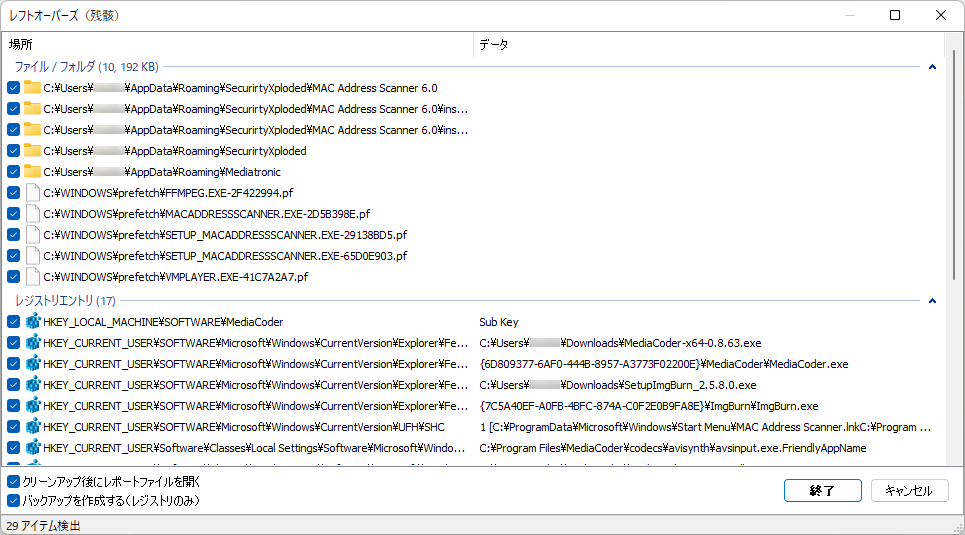
When normal removal fails, use Force Uninstall (toolbar or right-click). After any uninstall, review the leftover scan: HiBit lists file and registry traces so you remove only what belongs to that program.

HiBit Uninstaller leftover file and registry scan after uninstall
Step 3

Batch uninstall

Select multiple programs, then use Uninstall Selected. HiBit walks through each app with leftover cleanup. That workflow is ideal after trials, toolbars, or old utilities pile up.

HiBit Uninstaller Tools menu with system utilities

Troubleshooting

Common issues and practical fixes, so you can skip digging through forums.

Program won't uninstall normally

Use Force Uninstall when the vendor uninstaller is broken or missing. Run HiBit as Administrator so it can reach protected locations.

Leftover files after uninstall

Accept the post-uninstall scan, and prefer Advanced Scan when you want a line-by-line review. Session backups help you roll back registry edits if something looks wrong.

Interface text feels small

Raise Windows display scaling or text size (Settings → Display). HiBit follows system fonts, so OS-level adjustments carry through.

Is HiBit Uninstaller safe?

HiBit is freeware with no paywalled “pro” tier. It’s widely checked on VirusTotal, and registry-related actions can be backed up per session so you can restore if needed.

System requirements

  • Windows Vista through 11 (32-bit and 64-bit)
  • ~5.7 MB portable download (~14.6 MB extracted)
  • Portable build needs no installer
  • Administrator rights recommended for deep cleanup

Download HiBit Uninstaller

Free for personal and commercial use. Installer and portable builds share the same feature set, with no artificial limits.

Knowledge hub

Deep references for safe uninstall workflows, cleanup cadence, and Windows hygiene, with links to focused guides below.

Quick guides: Force uninstall, Leftovers and registry, Batch uninstall, and all guides. Shorter reads: blog and topics index.

Safe Removal Principles

Always start with a normal uninstall flow before force removal. A standard uninstall keeps vendor cleanup logic intact and reduces risk of deleting shared components.

When scanning leftovers, review each entry carefully. Focus on clear app-specific paths, and avoid deleting generic shared folders unless you are certain they belong only to the removed software.

For registry leftovers, keep backups enabled. If your environment depends on legacy software, registry snapshots provide a fast rollback path.

Performance Optimization

Run periodic uninstall audits every 2-4 weeks. Removing abandoned software reduces background services, startup pressure, and update agent overhead.

Use batch uninstall for old toolbars, trialware, and outdated utilities in one session, then reboot once to complete pending file removals.

After major cleanup, validate startup entries and scheduled tasks to ensure no orphaned launchers remain.

Enterprise-Style Hygiene

For shared PCs, define a cleanup policy: uninstall unauthorized apps, remove stale runtimes, and verify browser extension footprint monthly.

Track software changes by date and source. This helps correlate instability with recent installs and speeds up root-cause investigation.

Keep a small approved baseline image of essential tools so users can recover quickly after aggressive cleanup operations.

Advanced Use Cases

Case 1: Broken Uninstaller Package

If an app has a missing MSI or corrupted uninstall script, force uninstall can remove traces from Program Files, AppData, and registry classes related to product identifiers.

Case 2: Security Tool Reinstallation

Before reinstalling antivirus or endpoint protection, perform complete removal of old drivers and service entries to avoid conflicts.

Case 3: Developer Workstation Reset

Clear outdated SDK versions, obsolete emulators, duplicate compiler runtimes, and legacy package managers for a cleaner build environment.

Case 4: Gaming PC Cleanup

Remove launcher leftovers, anti-cheat remnants, and stale cache directories after uninstalling large game platforms.

Case 5: School or Lab Machines

Batch remove trial software installed by students, then reset startup and temporary files between class sessions.

Case 6: Disk Pressure Recovery

Use uninstall + junk cleanup + startup review as a combined recovery flow when system drive free space drops below safe levels.

Practical Cleanup Checklist

Before Uninstall

  • Close the target application and related background processes.
  • Create a restore point if you are cleaning critical work machines.
  • Export app settings if you may reinstall later.
  • Disconnect optional external drives to avoid accidental path selection.

After Uninstall

  • Run leftover scan and review entries one-by-one.
  • Inspect startup entries for orphans and disable unwanted launchers.
  • Check browser extensions if the removed app injected plugins.
  • Reboot and confirm no service or tray icon returns.

Detailed FAQ

What is HiBit Uninstaller?

HiBit Uninstaller is a free Windows utility that uninstalls programs, scans for leftover files and registry entries, and ships with extra tools such as a registry cleaner, junk cleanup, and startup manager. Portable and installer editions are available at no charge.

Can force uninstall damage Windows?

Force uninstall is safe when used responsibly and focused on app-specific traces. Avoid deleting unknown shared registry keys. Session backups help you revert if needed.

Should I remove all leftovers every time?

For stubborn or security-sensitive apps, yes. For standard utilities, selective cleanup is often enough. Prioritize clear, app-owned files and keys.

Why do some files remain after reboot?

Locked files can be scheduled for deletion at startup. A second reboot may complete pending operations if a process still holds a handle.

Can I uninstall Microsoft Store apps with HiBit?

Yes, supported environments can remove Store apps and associated components through dedicated entries in the interface.

What is the best cadence for maintenance?

For heavy users, bi-weekly checks work well. For general users, monthly cleanup plus quarterly deep review is typically enough.

Does portable mode have limitations?

Portable mode is lightweight and convenient. Most core uninstall features remain available, but admin privileges are still recommended for system-level removals.

Security-Oriented Workflow

When removing suspicious software, combine force uninstall with browser extension checks and startup task cleanup.

Audit %AppData%, %ProgramData%, and scheduled tasks for remnants that can relaunch adware components.

After cleanup, update your browser and run a trusted malware scan to validate system health.

Power User Workflow

Use install monitoring for software you frequently test and remove. It improves traceability and cleanup precision.

Group uninstall sessions by category (drivers, utilities, media tools) and reboot after each group for clearer troubleshooting.

Document removed components so you can rebuild your preferred environment quickly later.

Final Recommendations

HiBit Uninstaller works best as part of a complete maintenance routine: uninstall intentionally, verify leftovers, optimize startup, and maintain periodic cleanup cycles.

If you manage multiple PCs, standardize your process with a documented checklist. Consistency reduces mistakes and improves long-term reliability.

For the safest experience, always run as administrator when removing deep system integrations, and keep backup/restore options enabled before major cleanup sessions.

Deep-dive maintenance library

For power users and technicians who want predictable cleanup with lower risk.

File System Traces

Look for leftovers in Program Files, ProgramData, AppData Local/Roaming, temp directories, and user documents created by app plugins.

Registry Traces

Review product keys, shell extensions, context menu handlers, startup entries, COM registrations, and installer metadata leftovers.

Service Cleanup

Check for stale services and drivers after removing antivirus, VPN clients, network filters, and low-level monitoring tools.

Extension Footprint

Inspect browser add-ons and helper executables that remain after uninstalling software bundles with ad-injection behavior.

Common Uninstall Mistakes (And Better Alternatives)

Mistake: Deleting app folders manually first. Better: Run normal uninstall, then use leftover scan for a controlled, reversible process.

Mistake: Removing random registry keys from search results. Better: Only remove keys clearly tied to exact vendor/product identifiers.

Mistake: Force-uninstalling every app by default. Better: Reserve force mode for broken uninstallers or stubborn packages.

Mistake: Cleaning many critical apps without a reboot checkpoint. Better: Group changes and reboot between groups for easier rollback diagnosis.

Mistake: Ignoring scheduled tasks and services. Better: Verify no auto-start task survives after removal.

Weekly Quick Plan

  • Review new software installed this week.
  • Remove trial tools no longer needed.
  • Check startup list for unexpected entries.
  • Clear temporary junk in one short session.

Monthly Deep Plan

  • Batch uninstall outdated utilities and helper apps.
  • Review browser extensions and remove orphan add-ons.
  • Audit leftover folders in AppData and ProgramData.
  • Reboot and validate system behavior after cleanup.

Quarterly Stability Plan

  • Remove old drivers and deprecated runtimes.
  • Document approved baseline software versions.
  • Test clean reinstall flow for core business apps.
  • Archive maintenance notes for future troubleshooting.

Troubleshooting Matrix

Issue: App still appears in list

Rescan installed programs, verify uninstall registry key removal, and restart Explorer or reboot to refresh software inventory view.

Issue: Uninstaller crashes instantly

Run as administrator, try force uninstall, then manually verify services/tasks tied to the product are removed.

Issue: Leftover folder cannot delete

A process may lock files. Reboot, retry cleanup, or close related background services before deletion attempts.

Issue: UI text appears too small

Adjust Windows scaling and text size. High-DPI display settings often resolve readability issues.

Glossary For Non-Technical Users

Leftovers

Files, folders, registry keys, services, or startup entries that remain after uninstalling software.

Force Uninstall

A fallback removal mode used when the original uninstaller is missing, broken, or incomplete.

Portable App

An app that runs without full system installation, often useful for USB or temporary diagnostic workflows.

Startup Entry

A process configured to run when Windows starts. Removing unused entries can improve boot speed.

Registry Backup

A restore snapshot that lets you revert registry changes if cleanup removes something critical by mistake.

Context Menu Handler

An integration that adds right-click options in File Explorer. Some apps leave broken handlers behind.

Extended Q&A

Should I uninstall old Visual C++ runtimes? Usually no, unless you are certain no installed app depends on them. Shared runtimes are common dependencies.

Why does an app return after uninstall? It may be auto-reinstalled by a suite updater, scheduled task, or companion launcher still active on the system.

Can I use HiBit on low-end hardware? Yes. Its lightweight profile makes it practical for older systems, especially in portable mode.

Is batch uninstall always faster? It is efficient for volume cleanup, but processing fewer apps per round can make troubleshooting easier if something fails.

Do I need internet for uninstall? No for most local uninstall operations. Internet is only needed for downloading software and update checks.

What if a cleanup removed needed settings? Use restore options and backups when available, then reinstall the affected app to rebuild missing configurations.

Can cleanup help with random freezes? It can reduce software conflicts and background load, but hardware diagnostics may still be required for persistent freezing issues.

How much free space should I keep? As a practical target, keep enough headroom on your system drive to avoid update/install failures and paging pressure.

Uninstall & cleanup compendium

Workflows and scenarios you can reuse when maintaining Windows over months and years.

Workflow A: Failed Installer Recovery

When installation repeatedly fails because of old remnants, remove all previous traces, restart Windows, and reinstall from a clean package source.

  1. Uninstall existing entry from programs list.
  2. Run advanced scan for leftovers.
  3. Remove vendor-specific startup tasks and services.
  4. Reboot and install latest stable release.

Workflow B: Post-Trial Cleanup

After trying multiple tools, perform one consolidated batch cleanup to remove launchers, helper modules, and expired update agents.

  1. Create a list of trial apps installed in the last 30 days.
  2. Batch uninstall in groups of 5-10 apps.
  3. Run junk and registry cleanup carefully.
  4. Validate startup and browser extensions.

11 Real-World Cleanup Scenarios

Old Office Suite Removal

Remove legacy office versions before deploying a new subscription edition to prevent file association conflicts.

VPN Client Replacement

Fully remove old network adapters and services before switching to a new VPN product.

Media Codec Cleanup

Uninstall stale codec packs and duplicate media helpers that interfere with modern players.

Legacy Printer Software

Clear old print drivers and monitor utilities after replacing printers in shared environments.

Developer Tool Rotation

Remove outdated compilers, SDKs, and build tools to simplify path variables and reduce build ambiguity.

Gaming Launcher Reset

Delete old launchers and helper anti-cheat modules before migrating to a single game platform.

Remote Work Laptop Refresh

Clear conferencing add-ons and old security agents that degrade startup performance.

Classroom Device Reset

Batch remove unauthorized student installs and restore a known-good software baseline.

Support Technician Cleanup

Remove old diagnostics tools and temporary utilities after service sessions are completed.

Adware Bundle Removal

Uninstall primary app plus associated browser modules, scheduled tasks, and toolbar remnants.

Disk Space Emergency

Prioritize uninstalling large unused software, then clear junk and duplicate auxiliary tools.

Beginner Policy

Use standard uninstall first, avoid deleting unknown registry keys, and reboot after major removal sessions.

Ideal for home users who want safe and simple maintenance with minimal risk.

Intermediate Policy

Combine uninstall, leftover scan, startup audit, and periodic extension review every month.

Best for users who install and test many utilities regularly.

Advanced Policy

Track software lifecycle, remove stale drivers/services, and maintain rollback checkpoints for every cleanup wave.

Designed for technicians and IT operations on shared systems.

Decision Tree: Which Mode Should You Use?

Normal Uninstall

If the app has a healthy uninstaller and removes cleanly, start here first.

Force Uninstall

Use when uninstall fails, app is missing from list, or leftovers continue to relaunch components.

Batch Uninstall

Choose this mode for large cleanup sessions involving old utilities, toolbars, and trial software.

Monitor Install

Use for software you may remove later and want precise uninstall traceability.

Long-Form Best Practices

Maintain a clean uninstall journal with date, app version, source, and cleanup notes. Documentation helps identify recurring issues and failed rollback patterns.

After removing deep system tools (security, networking, virtualization), always verify driver and service layers. Surface-level uninstall completion may hide kernel-level leftovers.

During high-volume cleanup, process software by category rather than random order. Grouping by software type improves troubleshooting when performance or compatibility regressions appear.

Prefer official download sources for reinstallation testing. Third-party repackaging can modify installer behavior and reintroduce components that were intentionally removed.

When evaluating system stability post-cleanup, observe boot time, background CPU usage, memory pressure, and network callbacks for at least one full day before declaring the system fully clean.

For shared environments, create a post-cleanup validation checklist including login speed, browser profile health, printing, update services, and security tool status.

Do not remove dependencies blindly. Many apps rely on shared runtimes, frameworks, and redistributables that should remain installed for other software.

When in doubt, keep backups and restore points. Fast rollback is always better than emergency repair under time pressure.
Checklist: Validation After Major Cleanup

  • Programs list refreshes correctly after reboot.
  • No orphan tray icons or failed auto-start prompts.
  • Browser opens without unknown extension warnings.
  • Task Scheduler contains no stale app relaunch jobs.
  • System Update and Security Center remain healthy.
  • No recurring installer/repair popups at login.

Checklist: Reinstall Readiness

  • Previous app folders and temp caches removed.
  • Related services/drivers are no longer active.
  • Old scheduled tasks and startup hooks deleted.
  • Installer downloaded from official current source.
  • Restore point created before clean installation.
  • Post-install verification plan documented.

Handbook for clean Windows systems

Lifecycle checks, auditing habits, and repeatable cleanup standards for individuals and small IT teams.

Software Lifecycle Mapping

Track software by phase: evaluation, active use, deprecated, and removal-ready. Lifecycle mapping reduces random uninstall decisions.

When every app has status and owner, cleanup sessions become faster and safer with fewer accidental removals.

Audit-First Strategy

Before uninstalling, audit disk usage, startup impact, service count, and extension footprint. Remove software with the largest negative footprint first.

This strategy maximizes performance gains early and avoids unnecessary risk from low-impact changes.

Prevention Over Cleanup

Preventing bad installs is easier than removing them later. Use trusted sources, verify signatures, and avoid bundled installers.

A small prevention checklist can cut future cleanup volume dramatically.

11-Step Professional Cleanup Runbook

Step 1: Build uninstall target list from recent installs and unused software.

Step 2: Create restore point and close all non-essential background apps.

Step 3: Start with normal uninstall for each target application.

Step 4: Use force uninstall only for broken or missing uninstallers.

Step 5: Run leftover scan and remove app-specific traces carefully.

Step 6: Inspect startup entries and scheduled tasks for relaunch hooks.

Step 7: Remove associated browser extensions and helper modules.

Step 8: Review services/drivers for security, VPN, and system tools.

Step 9: Execute junk cleanup and verify freed disk space.

Step 10: Reboot and validate boot speed, tray behavior, and CPU load.

Step 11: Document results and schedule next maintenance checkpoint.

Compatibility Risk Notes

  • Some shared runtimes are required by multiple apps.
  • Security software may leave network filters after uninstall.
  • Enterprise tools can reappear via policy or management agents.
  • Game anti-cheat components may persist until reboot.
  • Old shell extensions can break right-click menus.

Recovery Risk Controls

  • Enable backups before registry cleanup sessions.
  • Change software in batches, not all at once.
  • Keep one rollback image for critical workstations.
  • Validate major business apps immediately after cleanup.
  • Record failed uninstall cases for future automation rules.

Extended Maintenance Calendar

Week 1

Remove unused apps, verify startup items, clear temporary files, and document all changes in maintenance notes.

Week 2

Audit browser extensions, remove ad-injection remnants, and verify no helper tasks are recreating old software footprints.

Week 3

Deep-scan leftovers from recent removals and validate system services are healthy after reboot cycles.

Week 4

Run a performance sanity check: boot time, memory pressure, idle CPU, and application launch responsiveness.

Quarterly

Retire deprecated tools, remove old drivers, and update baseline app inventory for your primary workflow.

Yearly

Perform full environment review, rebuild software standards, and optimize long-term install/uninstall policy.

Policy Card 1

Never trust unknown download mirrors for system utilities.

Policy Card 2

Always capture uninstall outcomes and leftovers in notes.

Policy Card 3

Keep browser extension inventory minimal and reviewed monthly.

Policy Card 4

Use monitored installs for software you frequently test/remove.

Policy Card 5

Validate task scheduler after every aggressive cleanup session.

Policy Card 6

Avoid deleting shared runtimes unless dependency impact is known.

Policy Card 7

Reboot between software categories when doing batch removals.

Policy Card 8

For shared PCs, maintain strict approved software baseline.

Large FAQ Add-on

How do I know cleanup worked? Confirm no relaunch tasks, no tray remnants, healthy startup entries, and stable behavior across at least one full reboot cycle.

Why do remnants return after deletion? Active updater services or scheduled tasks can recreate components unless they are removed from startup logic.

Is portable mode enough for technicians? Yes for many tasks, but admin rights are still required for deep service/driver cleanup on protected systems.

Can I automate my routine? Yes, with a documented checklist and consistent software categories, cleanup can be repeated reliably with fewer errors.

What should I do before mass uninstall? Backup important settings, create restore point, close running apps, and prepare a recovery path for critical tools.

Should I cleanup weekly? For heavy software testing environments, weekly mini-cleanups are useful; for normal users, monthly is usually enough.

Can uninstall fix performance issues alone? It helps significantly for software bloat, but hardware bottlenecks and driver issues may still need separate diagnostics.

What is the top safety rule? Remove only what you can identify confidently, and keep rollback options available before deep cleanup operations.

Download