
Glossary
Simple definitions for readers of this independent guide. It is not legal or technical advice. We are not the official HiBit Uninstaller website. Use the jumps below to move between letter ranges; each term links onward to guides, blog posts, or homepage sections when you want depth.
A–F
- Batch uninstall
- Removing multiple programs in one session—often with per-app cleanup between steps. See batch uninstall guide and homepage tutorial.
- Force uninstall
- A fallback mode that removes an application when the vendor’s uninstaller is missing, broken, or incomplete. Use only when normal uninstall fails; see force uninstall guide and FAQ.
- ARP / “Programs and Features” entry
- The record Windows keeps for installed desktop software so Settings or Control Panel can launch the vendor uninstaller. If this entry is wrong or missing, HiBit’s force mode may be the next safe step after backups—see the guide.
I–L
- A shell handler that adds commands when you right-click files or folders. Uninstalling the parent app sometimes leaves these DLLs behind; they can cause Explorer slowdowns. Review carefully during leftover cleanup.
- Installation monitor
- A workflow that records filesystem and registry changes while a setup runs, to simplify accurate removal later. Explained in this blog article.
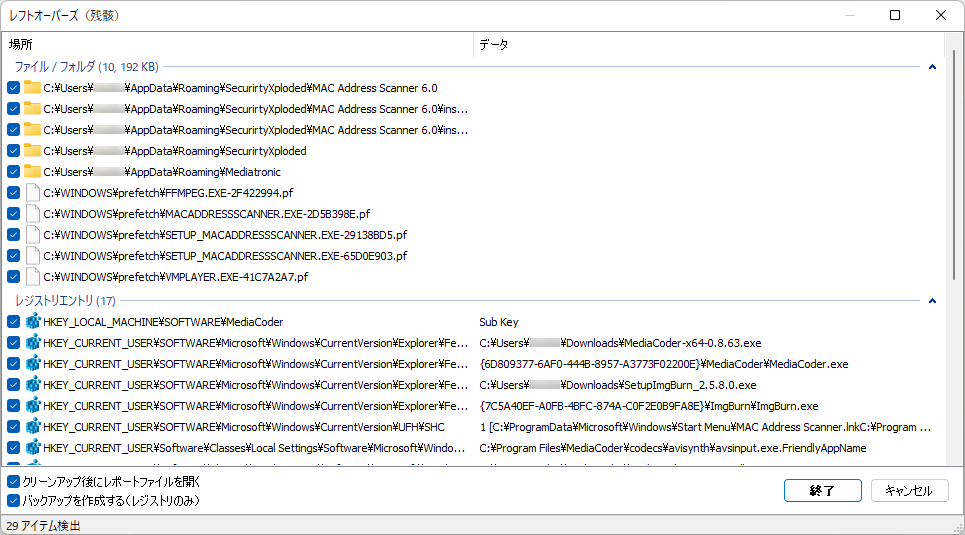
- Leftover scan
- A post-uninstall review that lists file and registry traces that may still belong to the removed program. Always review line by line; see leftovers guide.
- Leftovers
- Files, folders, registry keys, services, or startup entries that remain after uninstalling software. Not all leftovers are safe to delete. See deep-dive glossary section on the homepage.
M–R
- Microsoft Store app (UWP)
- A packaged app distributed through the Microsoft Store, different from classic desktop installers. Removal paths differ; see Store apps guide and features.
- MSI / Windows Installer package
- A structured installer format many vendors use. Repair and uninstall entries may appear even when shortcuts are gone; standard uninstall should still be tried before force removal. Deep cleanup overlaps with leftover scans.
- Portable edition
- A build you can run from a folder or USB without a traditional installer. Compare with the setup-based build in portable vs installer.
- Registry (use with care)
- Windows’ central configuration database. Incorrect edits can destabilize the system. Prefer vendor uninstallers and documented cleanup; keep backups. See registry leftovers guide.
- Restore point
- A System Restore snapshot you can roll back to if a driver or system change causes problems. Useful before aggressive cleanup; see restore point article.
S–Z
- Session backup
- A per-session snapshot some uninstall tools offer so you can undo registry changes made during that cleanup. Complements—not replaces—a restore point.
- Startup entry
- A program or task configured to run when Windows signs in. After uninstalls, orphans can remain; see startup after uninstall.
- Standard uninstall
- Using the vendor’s uninstaller or Settings → Apps before any forced removal. Recommended first step on the tutorial section.
- Windows service
- A background component that can start at boot independent of the desktop UI. Security suites and VPNs often install services; remove them using vendor tooling first, then verify none remain—see startup after uninstall.
- UAC (User Account Control)
- Windows prompts that gate administrator actions. Deep uninstalls and registry cleanup frequently require elevation; if a removal fails silently, retry HiBit with admin rights.
- Junk / temp cleanup (related tools)
- Many uninstall suites bundle cache and temp file cleaners. They are not substitutes for reviewing leftovers tied to a specific product; prefer targeted scans after each uninstall.
Terms and product behavior may change with new Windows or HiBit releases. Always verify in the current application UI. Choosing between third-party uninstallers? See choosing an uninstaller.